You're on HTTPS. There's a little padlock. Everything is encrypted. So your internet provider has no idea what you're doing online, right?
Short answer: your ISP can't see the pages you read, what you type, or your passwords on HTTPS sites. But it can usually see which websites you visit, when, and how much data you move. Two leaks give it away: your DNS lookups and a field called SNI that's sent at the start of every HTTPS connection. The same goes for whoever runs the Wi-Fi you're on. The good news is that both leaks can be plugged.
So what exactly can your ISP see, what can't it see, and how do you shrink that list? Let's look at the actual traffic.
Can My ISP See My Browsing History?
Your ISP (internet service provider) is the company you pay for internet: your cable, fiber or mobile carrier. Every bit of data you send to the internet passes through its equipment. It doesn't need to hack anything to watch. It just has to look at what's already flowing through its network.
Whether it can read your browsing history depends on which part you mean. Here's the split for a normal HTTPS website:
| Your ISP can usually see | Your ISP can't see (on HTTPS) |
|---|---|
| The website names you visit (like example.com) | The exact pages or URLs (like /secret/diary.html) |
| The IP addresses you connect to | Anything you type into forms or search boxes on the site |
| When you connect and for how long | Your passwords and messages |
| How much data you send and receive | The content of the pages, photos and videos |
| Your DNS lookups (unless they're encrypted) | Cookies and login sessions |
So your ISP can't tell which article you read on a news site or what you searched for on a search engine. But it can see that you visited that news site at 11:42 PM and spent twenty minutes there. For a lot of people, that's already plenty.
Leak #1: DNS, the Internet's Phone Book
Before your browser can connect to a website, it has to turn the name into an IP address. That's the job of DNS (the Domain Name System). We walk through the whole trip in What Happens When You Type a URL Into Your Browser?, but the short version is: your device asks a DNS server "where is example.com?" and gets back a number.
Here's the catch. Classic DNS is sent in plain text, and by default the DNS server is usually run by your ISP. So your ISP gets a neat, timestamped list of every site you look up, just by answering the questions.
We set up a tiny DNS server on a test laptop and watched the traffic with tcpdump, a standard tool for capturing network packets:
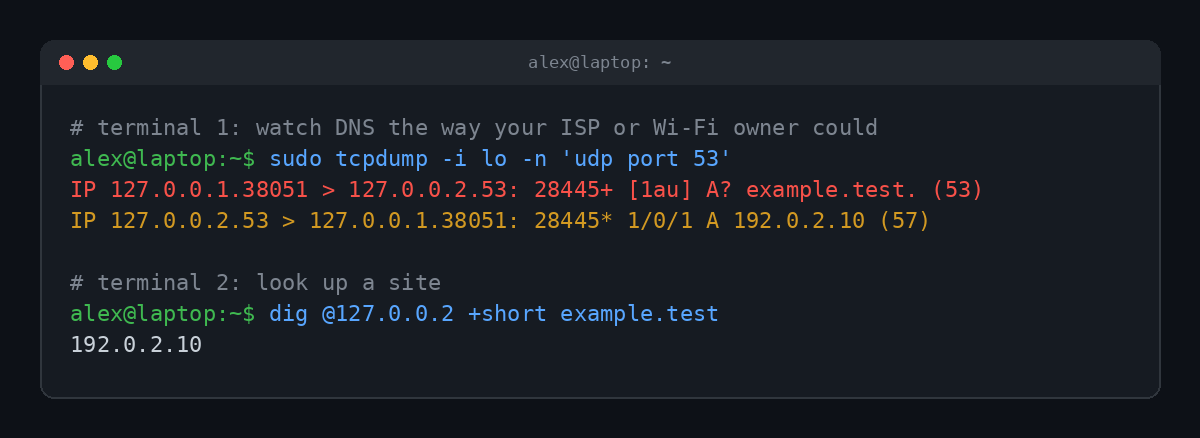
No decryption needed. The question A? example.test. (meaning "what's the address of example.test?") sits right there in the packet. Any network in the middle, your ISP, the coffee shop router, the hotel Wi-Fi, can read it the same way.
Leak #2: SNI, the Name on the Envelope
Okay, so encrypt DNS and you're done? Not quite. There's a second leak inside HTTPS itself.
One server often hosts hundreds of websites on the same IP address. When your browser starts an encrypted connection, it has to tell the server which site it wants, so the server can show the right certificate. That message is called Server Name Indication, or SNI, and it's traditionally sent before the encryption kicks in. It's like mailing a sealed letter: nobody can read the letter, but the address is written on the outside.
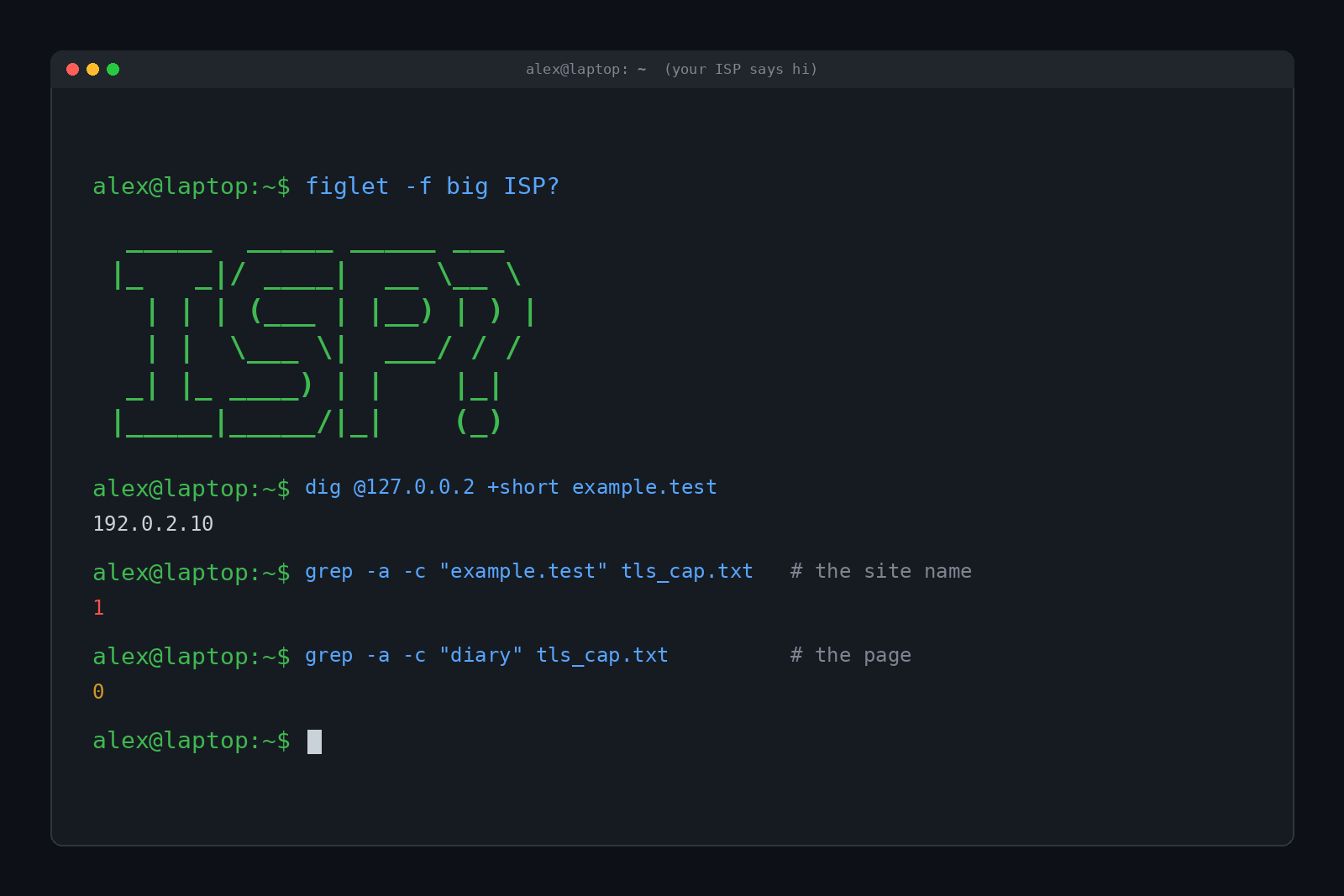
We tested it. A small HTTPS server ran on the test laptop while tcpdump recorded every byte. Then we fetched a page called /secret/diary.html and searched the capture:
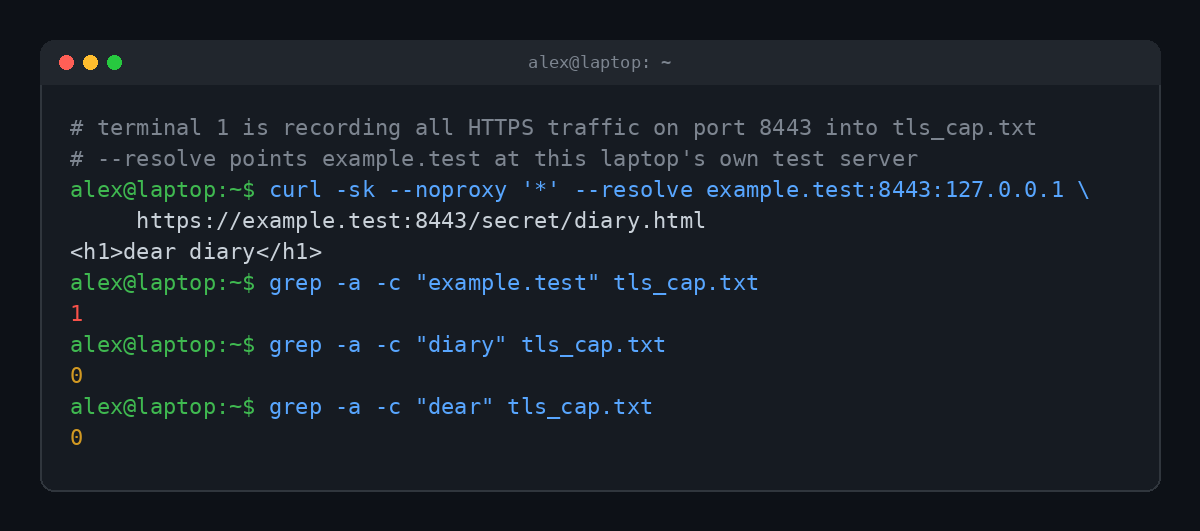
That's HTTPS doing its job and showing its limit at the same time. The word "diary" and the page contents never appear in the capture, because they're encrypted. But example.test appears once, in the SNI. Your ISP sees that you visited the site, not what you did there.
And even if both DNS and SNI were hidden, your ISP still sees the IP address you're connecting to. For a big shared host or a content delivery network, that IP might serve thousands of sites, so it reveals little. For a small site on its own server, the IP alone can give it away.
What About Incognito Mode?
Incognito or private browsing does nothing here. It only stops your own browser from saving history, cookies and form data after you close the window. Your traffic still flows through your ISP exactly the same way.
Same with clearing your history. That cleans up your device. It doesn't reach into your ISP's logs.
Do ISPs Actually Use This Data?
Depends where you live and which company you're with. In the US, Congress overturned FCC rules in 2017 that would have required ISPs to get your permission before using or sharing your browsing data for marketing. In 2021, the Federal Trade Commission published a report saying several big ISPs collect far more data than customers expect, including browsing data, and some combine it with other information for advertising.
Many providers also keep connection logs for security, troubleshooting or legal requests. In the EU, the GDPR puts much tighter limits on what they can do with it. Either way, the safest assumption is that anything your ISP can see, it can keep.
How to Hide Your Browsing From Your ISP
You can close most of these gaps with free settings. Here they are, roughly from easiest to most thorough.
1. Turn on encrypted DNS
DNS over HTTPS (DoH) wraps your DNS lookups in the same encryption as regular web traffic and sends them to a provider you pick instead of your ISP. Most browsers support it:
- Chrome and Edge: Settings, then Privacy and security, then Security, and turn on Use secure DNS. Pick a provider like Cloudflare, Google or Quad9.
- Firefox: Settings, then Privacy & Security, scroll to DNS over HTTPS and choose Increased or Max Protection.
- Whole device: Windows 11, Android (Private DNS) and recent iPhones and Macs can encrypt DNS for every app, not just the browser.
Note that this moves the DNS list from your ISP to the DNS provider you choose. Pick one with a privacy policy you're comfortable with.
2. Let Encrypted Client Hello do its thing
Encrypted Client Hello (ECH) is the fix for the SNI leak. It hides the real site name inside the encrypted part of the connection, so the outside only shows the hosting company. Chrome and Firefox both added ECH in 2023, and Firefox has it on by default. Cloudflare turned it on for its customers' sites the same year.
Two catches: the website also has to support ECH, and it works best alongside encrypted DNS. Plenty of sites don't support it yet, so think of it as a big improvement that's still rolling out, not a guarantee.
3. Use a VPN
A VPN wraps all of your traffic in an encrypted tunnel to the VPN company's server. Your ISP then sees only one thing: that you're connected to a VPN, and how much data goes through it. DNS, SNI and IP addresses all ride inside the tunnel.
The trade is trust. The VPN provider can now see what your ISP used to see. A VPN also doesn't stop websites from tracking you with cookies and logins, which we cover in What Is a VPN and Does It Actually Keep You Anonymous? and How Do Websites Track You Across the Internet?
4. Tor, for the serious stuff
The Tor Browser bounces your traffic through three volunteer-run relays, so no single relay knows both who you are and where you're going. Your ISP sees that you use Tor and nothing more. It's slower and some sites block it, so most people save it for when privacy really matters.
What About Public Wi-Fi and Work Networks?
Everything above applies to anyone who runs the network you're on. The coffee shop, the hotel, your landlord's router and your school can see the same things your ISP can: DNS lookups, SNI and IP addresses. Often they can see it more easily, because cheap routers log DNS requests by default.
Managed devices are a different story. If a school or company installed its own software or certificates on the device, it may be able to inspect traffic that would otherwise be encrypted. On a device someone else controls, assume they can see a lot more than an ISP can.
If you ever get a warning that your connection isn't private on public Wi-Fi, take it seriously. Here's what that warning means: What Does 'Your Connection Is Not Private' Mean?
Quick Answers
Can my ISP see my browsing history in incognito mode?
Yes. Incognito only hides history on your own device. Your ISP still sees the sites you connect to.
Can my ISP see what I search on Google?
No. Searches travel inside the encrypted HTTPS connection. Your ISP can see that you connected to Google, not what you typed.
Can the Wi-Fi owner see my history?
They can see the same things an ISP can: which sites you visit and when, but not the pages or content on HTTPS sites.
Does HTTPS hide the website name?
Not by itself. DNS lookups and the SNI field can both reveal it. Encrypted DNS and Encrypted Client Hello close those gaps.
How long do ISPs keep browsing data?
It varies by company and country. Many don't publish exact retention times, so check your provider's privacy policy.
TL;DR
Your ISP usually can't see the pages, searches or passwords on HTTPS sites, but it can see which websites you visit, thanks to plain-text DNS lookups, the SNI field in HTTPS and the IP addresses you connect to. Turn on encrypted DNS, use a browser with Encrypted Client Hello, and reach for a VPN or Tor when you want the whole thing hidden. Incognito mode won't help with any of it.