You click a link, and instead of the page you wanted, your browser throws up a big red warning: Your connection is not private. Attackers might be trying to steal your passwords. Somewhere below that, a cryptic code like NET::ERR_CERT_DATE_INVALID. Cool. Very calming.
Short answer: "Your connection is not private" means your browser couldn't verify the website's security certificate, the digital ID card that proves a site is who it says it is. Most of the time the cause is boring (an expired certificate, a wrong clock on your device, or public Wi-Fi that wants you to log in). Sometimes it means someone is actually sitting between you and the site. Don't type passwords or card numbers into a page that shows this warning until you know which one it is.
So what is your browser actually checking, why does it get upset, and when is it safe to click past it? Let's take it apart.
What "Your Connection Is Not Private" Actually Means
When you visit a site over HTTPS (the little padlock), two things happen before the page loads. Your browser and the server agree on encryption so nobody can read your traffic. And the server hands over a certificate to prove its identity.
That certificate is basically a signed note that says "this server really is example.com, and this note is good until a certain date." It's signed by a certificate authority (CA), a company your browser and operating system already trust. Think of it like a passport: the photo has to match you, it can't be expired, and it has to be issued by a country the border agent recognizes.
Your browser checks three things, every single time:
- Is it in date? Every certificate has a start date and an end date.
- Is the name right? The certificate has to cover the exact address you typed.
- Is the signer trusted? It has to chain back to a CA that your device trusts.
If any one of those fails, the browser stops and shows the warning. It isn't saying "this site is evil." It's saying "I can't prove this is the real site, so I won't promise your connection is private."
Each browser words it a little differently. Chrome says Your connection is not private, Edge says Your connection isn't private, Safari says This Connection Is Not Private, and Firefox goes with Warning: Potential Security Risk Ahead. Same problem, different outfit.
We Broke Some Certificates on Purpose
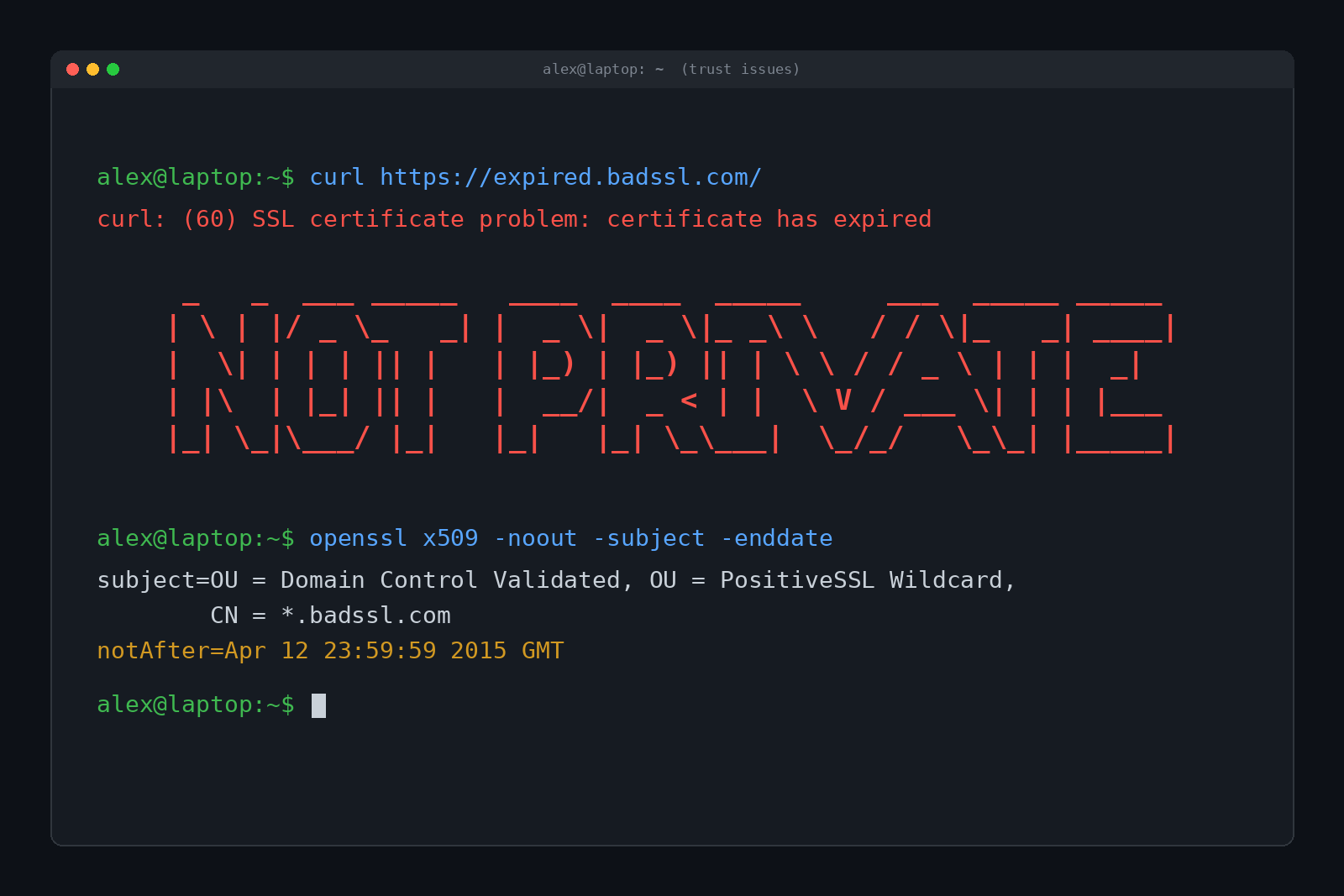
There's a great test site called badssl.com that hosts deliberately broken certificates so people can see how browsers and tools react. We pointed curl (a command line tool that fetches web pages) at four of them. Here's the real output:
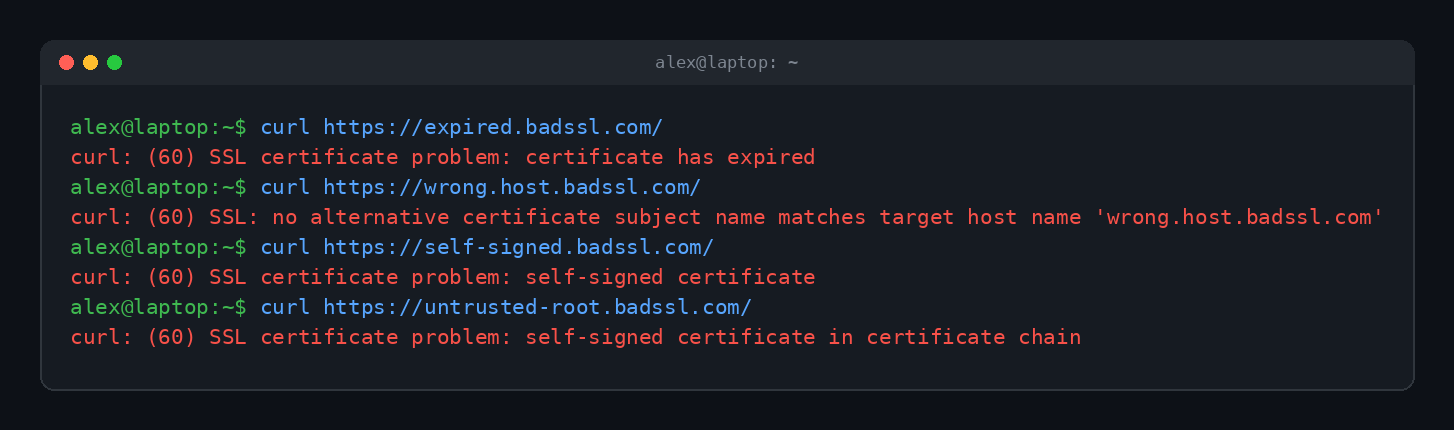
Each one of those is a different failure your browser can run into:
- Expired: the certificate's end date has passed. The one on expired.badssl.com ran out on April 12, 2015, and it's been kept that way as a museum piece.
- Wrong host: the certificate is real but made out to a different name. That test certificate covers
*.badssl.com, and a wildcard only covers one level, sowrong.host.badssl.comdoesn't match. Close doesn't count. - Self-signed: the server signed its own ID. Imagine handing a border agent a passport you printed at home.
- Untrusted root: the chain of signatures leads back to an authority your device has never heard of.
The Error Codes, Translated
Chrome and Edge put a code under the warning. It tells you which check failed, which tells you who needs to fix it. Here are the common ones:
| Error code | What it means | Usually whose problem? |
|---|---|---|
| NET::ERR_CERT_DATE_INVALID | The certificate is expired or not valid yet, or your device's clock is wrong | The site, or your clock |
| NET::ERR_CERT_COMMON_NAME_INVALID | The certificate doesn't cover the address you visited | The site (or a typo in the address) |
| NET::ERR_CERT_AUTHORITY_INVALID | The certificate was signed by someone your device doesn't trust | The site, or software on your device intercepting traffic |
| NET::ERR_CERT_REVOKED | The CA cancelled the certificate, often because it was compromised | The site. Don't proceed. |
| NET::ERR_CERT_WEAK_SIGNATURE_ALGORITHM | The certificate uses old, breakable cryptography | The site |
Google keeps a list of these and its suggested fixes on its Chrome help page for common errors.
Why Does This Error Happen? The Usual Suspects
Here's the honest ranking, from "most likely" to "actually worth worrying about."
1. Your device's clock is wrong
This one surprises people. Your browser decides whether a certificate is in date by comparing it to your device's clock. If your laptop thinks it's 2019, or 2031, every certificate on the internet looks broken at once.
We proved it with a real certificate. The one on example.com is valid from September 26 to December 25, 2026. With the correct time it checks out fine. Then we told OpenSSL (the encryption toolkit behind a lot of the internet) to pretend it was a different year:
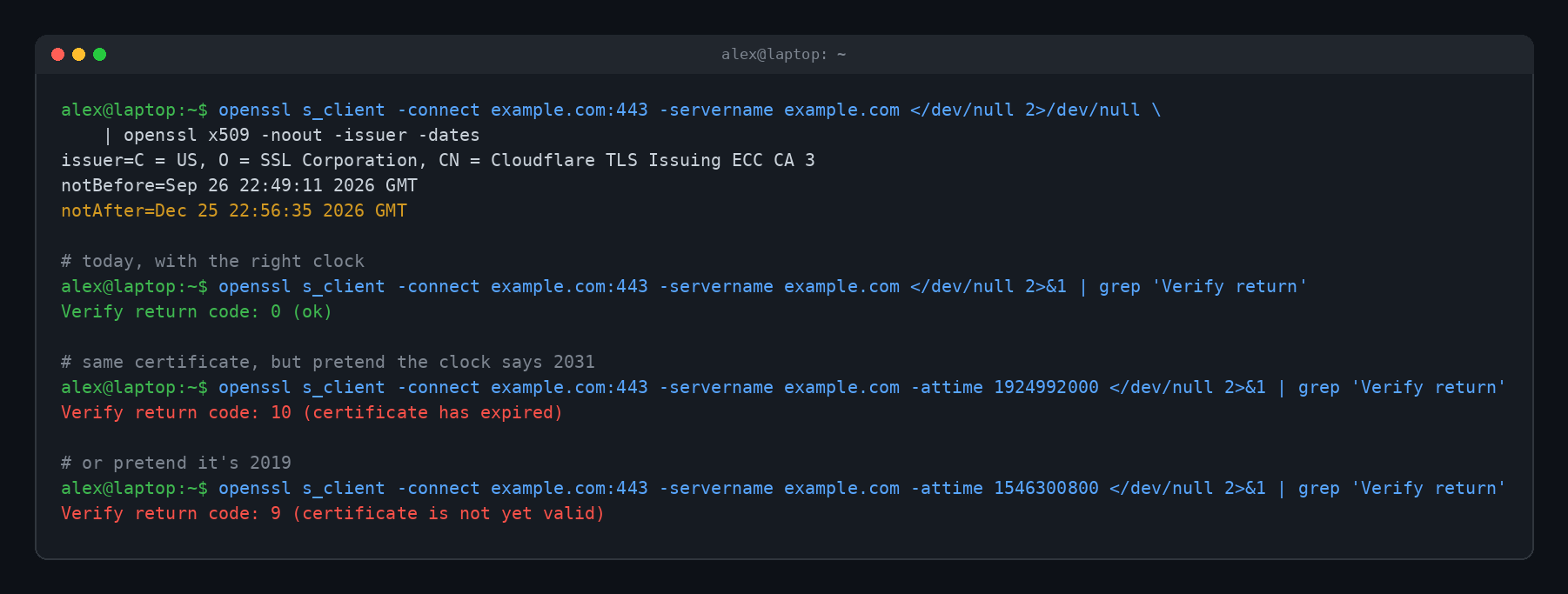
Same certificate, three different verdicts. Chrome even has special messages for this, "Your clock is behind" and "Your clock is ahead." Dead CMOS batteries in old desktops, a dual-boot setup fighting over the time, or a phone with automatic time turned off are classic causes.
Also notice how short that certificate's life is: about 90 days. That's on purpose. Under a CA/Browser Forum rule passed in 2025, the maximum lifetime for public certificates dropped from 398 days to 200 days on March 15, 2026. It drops to 100 days in March 2027 and to 47 days in March 2029, according to DNSimple's summary of the schedule. Shorter lives mean more renewals, and more chances for a site to forget one. Expect to see the expired flavor of this error more, not less.
2. The site's certificate expired or is set up wrong
Certificates don't renew themselves unless someone sets up automation. Somebody forgets, the renewal script breaks, and boom: everyone visiting the site gets the red screen. Big companies have done this. Small blogs do it constantly.
Misconfiguration is the other half. A site that works at www.example.com but has a certificate only for example.com will throw a name mismatch at anyone who types the www. If you see the error on one site only, and everything else works, it's probably the site's fault and there's nothing for you to fix.
3. Public Wi-Fi wants you to log in
Hotel, airport and coffee shop networks often hijack your first web request to show a sign-in page (called a captive portal). If that first request was an HTTPS site, the network hands back a page that obviously doesn't match the certificate your browser expected, and you get the warning.
Google's own fix: visit a plain http:// address, like http://example.com, so the network can show its login page. Sign in, and the error usually disappears.
4. Antivirus or a work network is inspecting your traffic
Some antivirus tools have a feature called HTTPS scanning. To look inside your encrypted traffic, they swap the site's certificate for one of their own. If that swap isn't set up correctly, your browser sees a certificate signed by an authority it doesn't trust and throws NET::ERR_CERT_AUTHORITY_INVALID.
Company and school networks do the same thing with proxies. On a managed device that's usually expected. On your own personal laptop, it shouldn't be happening.
5. Someone is actually intercepting your connection
This is the scenario the warning exists for. In a man-in-the-middle attack, someone on the same network (a fake Wi-Fi hotspot named "Airport_Free_WiFi" is the classic) tries to sit between you and the site, reading or changing what you send. They can't produce a valid certificate for your bank, so your browser catches them.
It's not the most common cause. But it's the one where clicking past the warning hands your password to a stranger, which is why browsers make proceeding so annoying.
How to Fix "Your Connection Is Not Private"
Work through these in order. Most people are done by step three.
- Reload the page. Seriously. Sometimes it's a one-off hiccup.
- Check your device's date, time and time zone. Turn on automatic time if it's off. On Windows that's Settings, then Time & language, then Date & time.
- If you're on public Wi-Fi, open
http://example.comto trigger the login page, then sign in. - Try an incognito or private window. If it works there, a browser extension is probably the culprit.
- Clear your browser cache. A stale cached page can hang onto an old error. We explain what that does in What Does 'Clear Your Cache' Actually Mean?
- Update your browser and operating system. Old systems can be missing newer root certificates, so perfectly good sites look untrusted.
- Temporarily turn off HTTPS scanning in your antivirus to test. Turn it back on afterward.
- Try another network, like your phone's hotspot. If the error vanishes, the original network is the problem.
If the error shows up on only one website, on every network and every device, the problem is on their end. You can't fix their certificate. You can let them know, or come back later.
Is It Safe to Proceed Anyway?
Browsers usually hide a way through behind an Advanced button, then a link like Proceed to example.com (unsafe). Should you click it?
Here's a decent rule of thumb:
- Never proceed on a bank, email, shopping or any site where you log in or pay. Those sites have money and teams to keep their certificates valid. If they suddenly fail, something is off.
- Never proceed if you got there from a link in an email or text you weren't expecting.
- Maybe proceed on a read-only site you trust, like a hobby blog with an expired certificate, as long as you don't type anything into it.
- Fine to proceed on your own home router's admin page or a device on your own network, which often uses a self-signed certificate. That one's yours.
And sometimes there's no Proceed link at all. Sites can use a setting called HSTS (HTTP Strict Transport Security) to tell browsers "only ever connect to me securely, no exceptions." When an HSTS site's certificate fails, the browser removes the bypass entirely. That's not a bug. It's the site asking your browser to be stubborn.
One more thing: a valid padlock doesn't mean a site is trustworthy. Scam sites get real certificates too. The padlock means your connection to that site is private. It says nothing about whether the site deserves your credit card number. A VPN won't change that either; we went into what VPNs do and don't protect in What Is a VPN and Does It Actually Keep You Anonymous?
If you want to see where certificate checks fit into the whole process of loading a page, from DNS to the final render, check out What Happens When You Type a URL Into Your Browser?
FAQ
Does "Your connection is not private" mean I've been hacked?
Almost never. It means your browser couldn't verify one site's certificate. Your device isn't infected just because you saw the warning. Only worry if it appears on every site, on a network you don't control, or after installing something sketchy.
Why do I only see this error on public Wi-Fi?
Usually because the network wants you to sign in through a captive portal and is redirecting your traffic. Open http://example.com to get the login page. If the error sticks around after you sign in, don't log into anything important on that network.
Why does every website show this error?
Check your clock first. A wrong date makes every certificate look expired or not valid yet. If the clock is right, look at antivirus HTTPS scanning or a proxy on the network.
Can I turn this warning off?
Not in any way that's a good idea. The warning is the only thing standing between you and a fake version of your bank. Fix the cause instead of hiding the alarm.
I run the website. How do I fix it?
Renew the certificate, make sure it covers every hostname you use (including www), install the full certificate chain, and automate renewals. With certificate lifetimes shrinking every year, manual renewal is a losing game.
TL;DR
"Your connection is not private" means your browser couldn't verify a site's security certificate. The usual causes are an expired or misconfigured certificate, a wrong clock on your device, public Wi-Fi that wants a login, or antivirus inspecting your traffic. Fix your clock and sign into the Wi-Fi first. And never click past the warning on a site where you log in or pay.