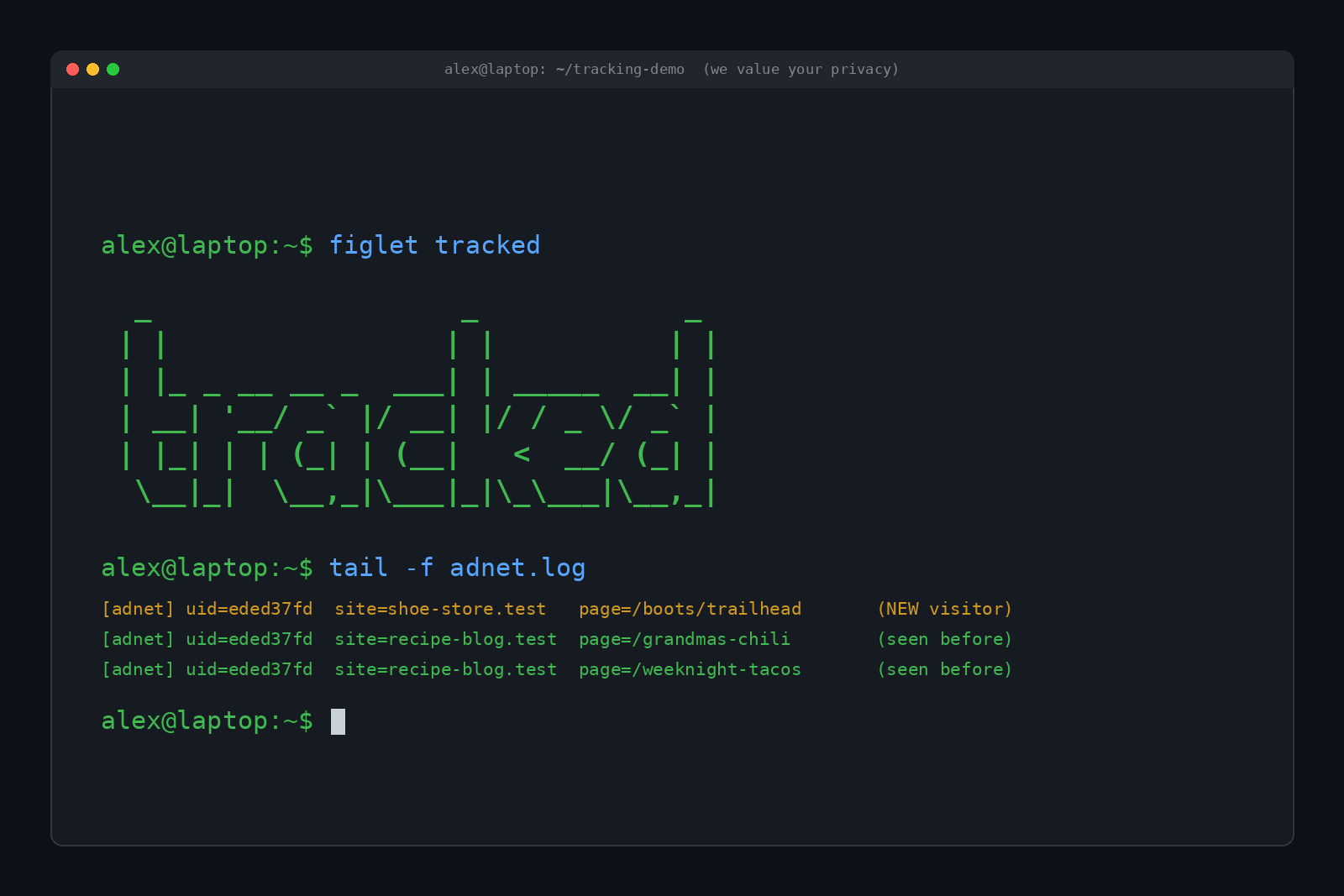
You look at a pair of hiking boots once. Just once. For the next two weeks, those boots follow you from your news site to your weather app to a recipe blog you've never visited before. So how do websites track you across the internet like that? And how did that recipe blog know about the boots?
Short answer: most websites aren't tracking you by themselves. They load little pieces of code from advertising and analytics companies, and those companies show up on thousands of sites at once. They recognize you using three main tools: cookies, tracking pixels and browser fingerprinting. Once you know how each one works, you can decide how much of it you're willing to put up with.
Why Websites Track You in the First Place
Most of the free internet is paid for by ads, and ads pay more when they're aimed at someone likely to buy. A shoe ad shown to a random person is worth pennies. A shoe ad shown to someone who looked at those exact shoes yesterday is worth a lot more.
That's the whole business model. Ad networks want to build a picture of what you're into so they can sell that attention to advertisers. Analytics companies want to know how people move around a site. Social networks want to know what you do when you're not on their site. None of them can see you directly, so they rely on the tricks below.
Cookies: The Original Tracker
A cookie is a tiny text file a website asks your browser to save. It usually holds an ID number, something like user_id=8f3a92c1. Next time your browser talks to that site, it hands the cookie back, and the site says "oh, it's you again."
Cookies were invented in 1994 by Lou Montulli, an engineer at Netscape, to solve a pretty innocent problem: online shopping carts kept forgetting what you'd put in them. Cookies are still why you stay logged in and why your cart survives a closed tab. They're not evil on their own.
First-party vs third-party cookies
The difference that matters is who sets the cookie.
- First-party cookies come from the site you're actually visiting. They keep you logged in, remember your dark mode setting and hold your cart.
- Third-party cookies come from some other company whose code is loaded on the page, usually an ad network.
Here's where the boots come back in. Say an ad company has its code on both the shoe store and the recipe blog. When you visit the shoe store, the ad company drops a cookie with your ID. When you visit the recipe blog, the same ad company's code loads, reads that same cookie and recognizes you. Now it knows you were shopping for boots, and it can show you boots anywhere its code runs. Spread that across thousands of sites and you get a pretty detailed browsing history.
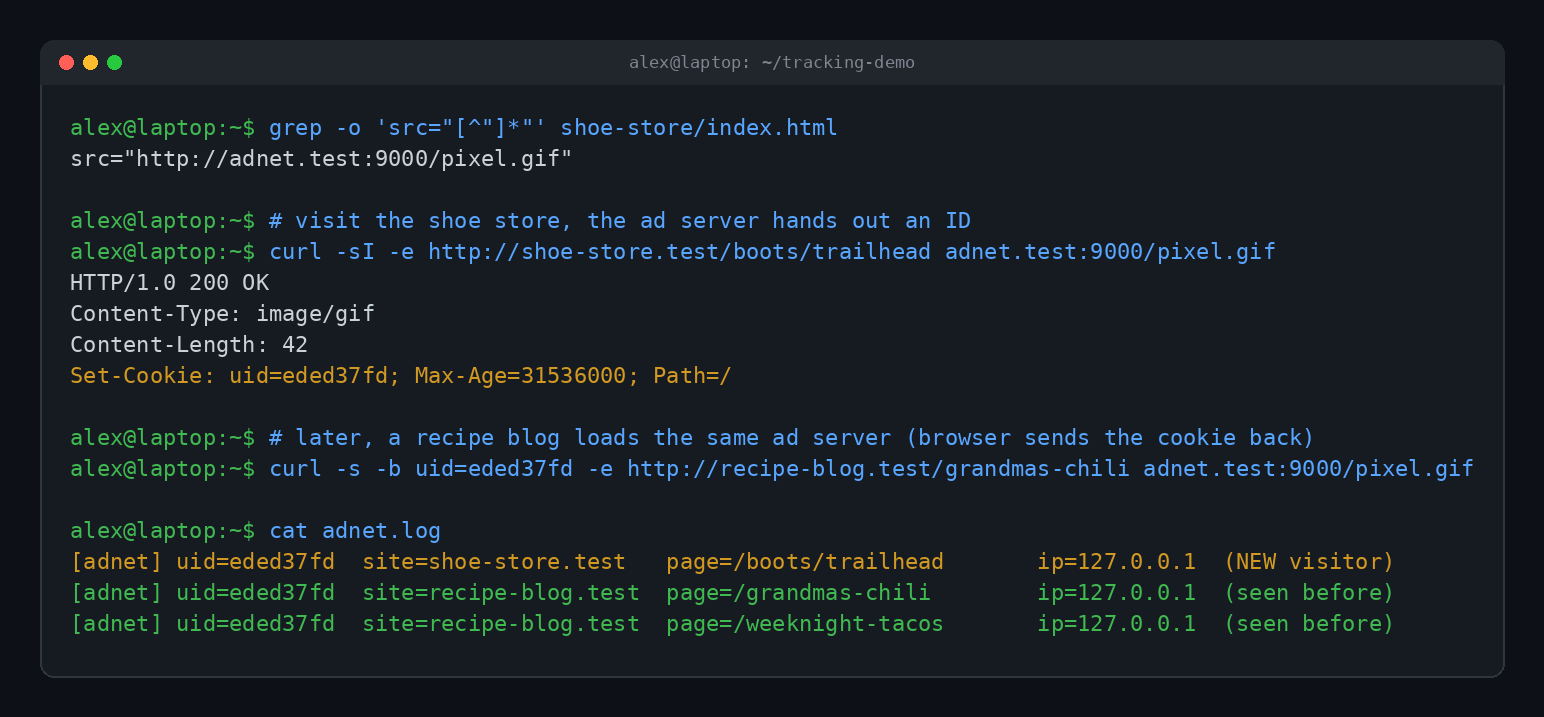
Aren't third-party cookies going away?
Sort of, depending on your browser. Safari and Firefox block most third-party cookie tracking by default. Google spent years promising to kill third-party cookies in Chrome, then reversed course in 2025 and said it would keep them and leave the choice up to users instead. So if you use Chrome with the default settings, third-party cookies are still very much in play. Chrome's Incognito mode does block them, though.
Tracking Pixels: The Invisible Image
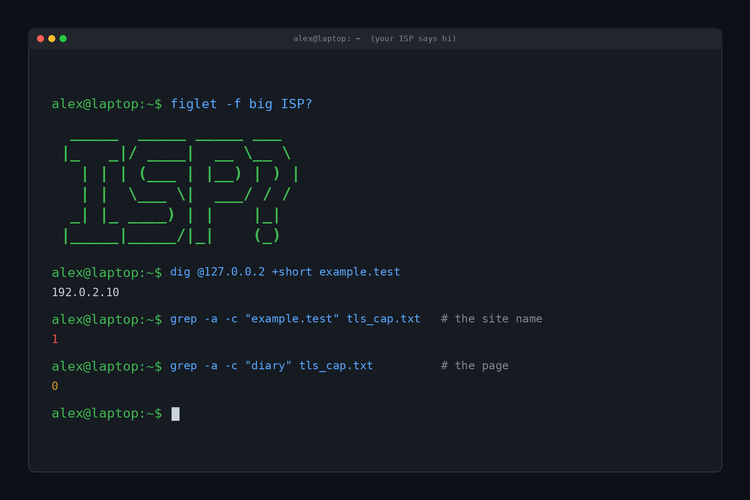
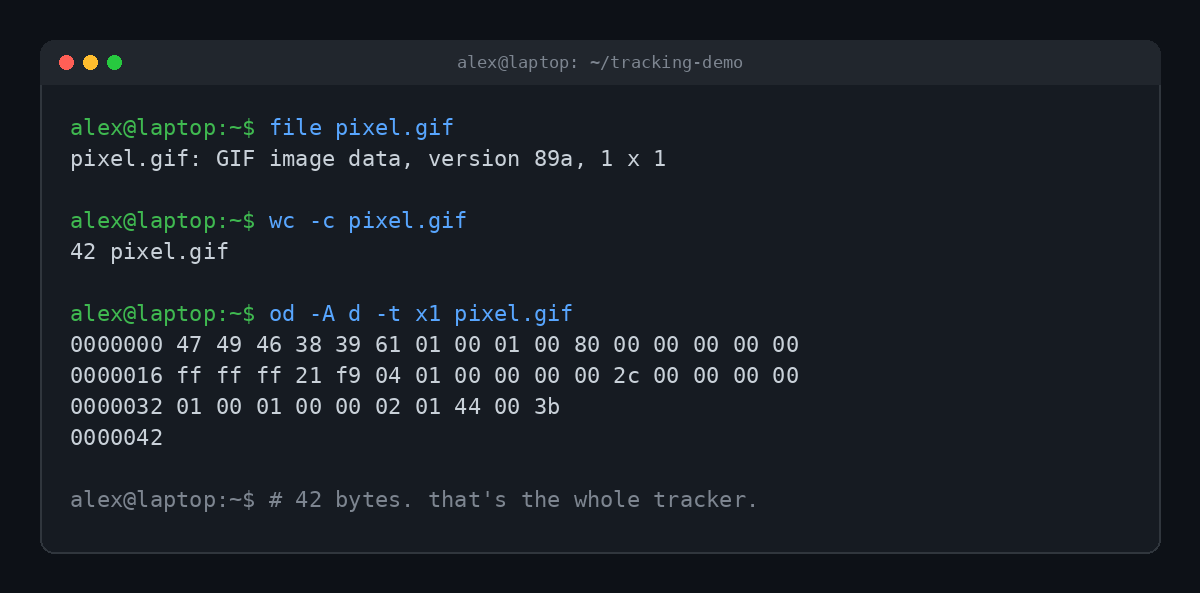
A tracking pixel (also called a web beacon) is an image that's 1 pixel by 1 pixel, usually transparent. You will never see it. That's the point.
When a page or email loads, your device has to fetch every image from wherever it lives. A tracking pixel lives on a tracking company's server, so fetching it tells that server a bunch of things automatically:
- That you opened this page or this email
- When you opened it
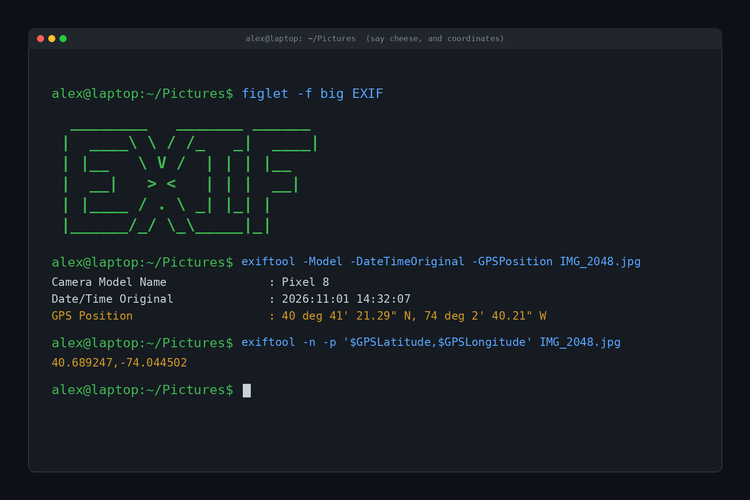
- Your IP address, which gives a rough location
- What browser and device you're using
- Any cookies that company already set on your browser
Pixels are everywhere. Marketing emails use them to see if you opened the message (and how many times). Online stores use pixels from Meta, Google, TikTok and others to report "this person bought something" back to the ad platform, so the platform can measure which ads worked. That's how an ad network can know you bought the boots and finally stop showing them to you. Sometimes.
Browser Fingerprinting: Tracking Without Storing Anything
Cookies can be deleted. Pixels can be blocked. So trackers found a sneakier method that doesn't need to save anything on your device at all.
Browser fingerprinting collects small details about your setup and combines them into a profile that's often unique to you. Any one detail is boring. Put together, they work like a fingerprint. Things a site can check include:
- Your browser and version, and your operating system
- Screen size and color depth
- Time zone and language settings
- Which fonts you have installed
- Your graphics hardware, revealed by asking the browser to draw a hidden image (called canvas fingerprinting)
- Whether you have a touchscreen, and how many processor cores you have
Two laptops of the same model can still render that hidden image slightly differently because of driver versions, fonts and hardware quirks. Those tiny differences add up.
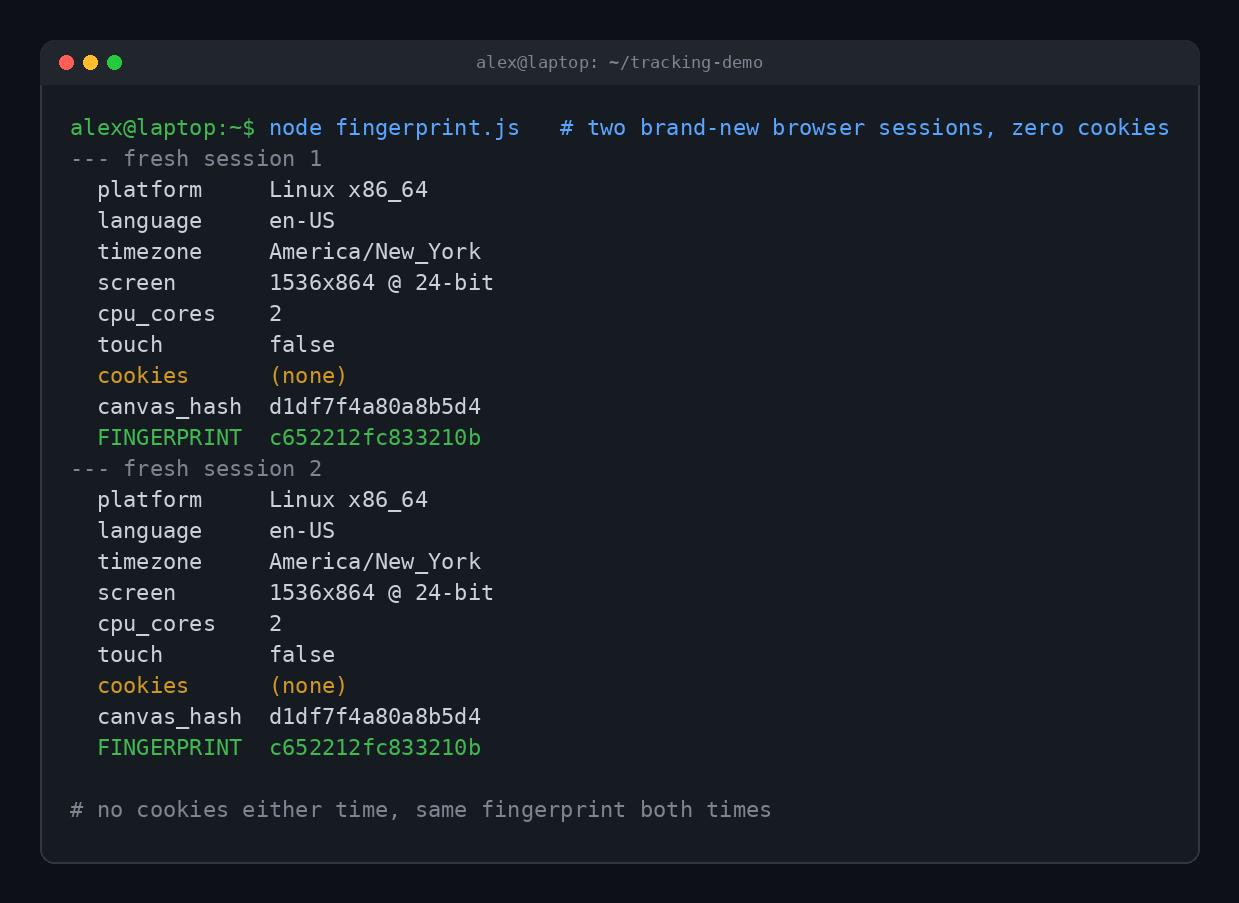
Here's the annoying part. Clearing your cookies does nothing to your fingerprint, because nothing was stored. Even worse, a very unusual setup (a rare browser, a pile of custom fonts, an odd screen size) can make you easier to spot, not harder. The best defense is to blend in with a crowd of people whose browsers look the same.
Want to see your own fingerprint? The Electronic Frontier Foundation runs a free test called Cover Your Tracks that shows what your browser gives away and whether it looks unique.
Other Ways You Get Followed Around
Those three are the big ones, but a few others are worth knowing about:
- Logins. If you're signed into Google, Facebook or Amazon, they don't need tricks. You told them who you are. Every "Log in with Google" button and embedded Like button can report back.
- Your IP address. Every site you visit sees it. It's not as precise as a cookie, since a whole household often shares one, but it's a useful clue for linking activity together.
- Tracking links. Those long strings tacked onto URLs, like
?fbclid=or?utm_source=, tell the site where you came from. Some are just for counting visits, others carry an ID tied to you. - Data brokers. Companies that buy and merge data from apps, stores and loyalty programs, then sell profiles to anyone who pays.
How to Stop Websites From Tracking You (Mostly)
You can't go fully invisible on the regular internet without making it pretty miserable to use. But you can cut tracking way down with a few settings. Pick whatever level of effort feels right.
Easy wins
- Block third-party cookies. In Chrome, go to Settings, then Privacy and security, then Third-party cookies, and choose Block third-party cookies. Safari and Firefox already handle most of this for you.
- Say no to cookie banners. When a site asks, click Reject all or Necessary only. It's often hidden behind a "Manage options" link on purpose.
- Stop email pixels. Turn off automatic image loading in your email app, or use Apple Mail's Protect Mail Activity setting, which loads images through a proxy so senders can't tell when you opened anything.
- Log out of the big accounts when you're not using them, or keep them in a separate browser profile.
A bit more effort
- Install a tracker blocker like uBlock Origin or the EFF's Privacy Badger. These stop a lot of pixels and tracking scripts from loading at all.
- Try a privacy-focused browser. Firefox with Enhanced Tracking Protection set to Strict, Brave or DuckDuckGo's browser all block much more out of the box than Chrome does.
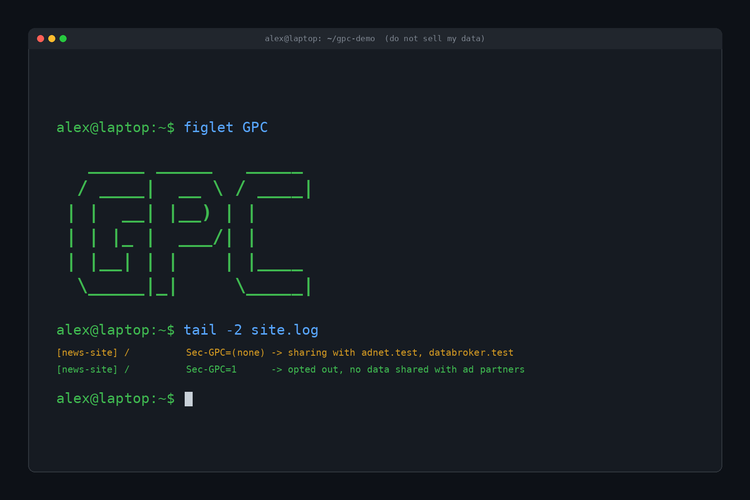
- Turn on Global Privacy Control. GPC is a signal your browser sends that says "don't sell or share my data." Brave and DuckDuckGo send it automatically, Firefox lets you switch it on, and Edge is rolling out its own switch in the US. A growing list of US states, including California, Colorado, Texas and New Jersey, legally require companies to honor it. We break it down in What Is Global Privacy Control (GPC)?
- Clear cookies now and then. It won't beat fingerprinting, but it does reset a lot of cookie-based profiles. Our post on what "clear your cache" actually means covers the difference between cookies and cache.
What about VPNs and incognito mode?
Incognito (or private) mode deletes your cookies and history when you close the window. That helps a little, but while it's open you can still be tracked, and it does nothing about fingerprinting. A VPN hides your IP address from the sites you visit, which is nice, but cookies, pixels and logins work exactly the same with or without it. We dug into that in What Is a VPN and Does It Actually Keep You Anonymous?
Quick Answers
Can websites track you if you delete cookies?
Yes. Fingerprinting, your IP address and being logged in all still work. Deleting cookies only removes one of several tracking methods.
Is accepting cookies dangerous?
Not in a virus sense. Cookies can't run code or read your files. Accepting all of them mainly means more of your browsing gets shared with advertisers.
Does incognito mode stop tracking?
Only partly. It clears cookies when you close the window, but sites can still fingerprint you and see your IP address while you browse.
How do I know which sites are tracking me?
Extensions like Privacy Badger show which trackers they blocked on each page, and the EFF's Cover Your Tracks test shows what your browser reveals.
Is website tracking legal?
Mostly, yes. Laws in the EU and in several US states require consent or an opt-out for some tracking, which is why cookie banners exist, but the rules vary a lot by location.
TL;DR
Websites track you across the internet mainly through third-party cookies, invisible tracking pixels and browser fingerprinting, usually run by ad companies whose code sits on thousands of sites. You can cut most of it with a tracker blocker, a privacy-friendly browser, blocked third-party cookies and a firm click on "Reject all." You won't disappear completely, but you'll stop being quite so easy to follow. (Those boots will still find you eventually.)