You type a web address into your browser, hit Enter, and a webpage appears. The whole thing usually takes less than a second. But underneath that instant result, your computer and servers around the world just had a very fast, very detailed conversation. Here's what actually happened, step by step, plus what can go wrong at each stage and how to see it for yourself.
The Short Version
- Your browser figures out where the website lives (DNS).
- It opens a connection to that server (TCP or QUIC).
- It sets up encryption so nobody can snoop (TLS).
- It asks for the page (HTTP request).
- The server answers with a status code and the page (HTTP response).
- Your browser fetches everything else the page needs and draws it on screen (rendering).
Now let's slow it down.
Step 0: Figuring Out What You Typed
Before anything goes over the network, your browser decides whether you typed a web address or a search. "server403.com" looks like an address. "why is my wifi slow" doesn't, so it goes to your search engine instead.
If you leave off the https://, modern browsers try the secure version first. Many sites also tell browsers to always use HTTPS through a setting called HSTS, and browsers remember that, so they never even attempt an unencrypted connection to those sites.
Step 1: Checking for a Saved Address
Every website lives on a server with an IP address, a set of numbers like 203.0.113.10 (or a longer IPv6 address like 2001:db8::10). Humans use readable names like server403.com. Computers need the numbers.
So your browser first checks whether it already knows the IP address for that name. It looks in its own short-term memory, then asks your operating system, which keeps its own list. If you visited the site recently, the answer is probably already there and the lookup takes no time at all.
Step 2: The DNS Lookup
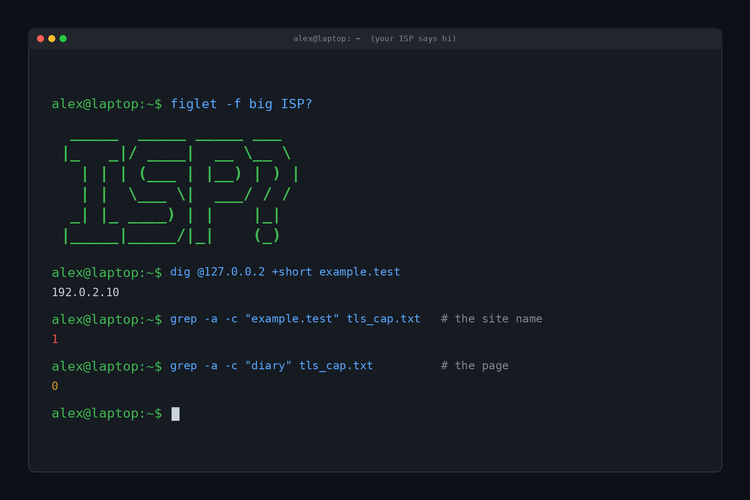
If there's no saved answer, it's time for DNS, the Domain Name System. It's the internet's phone book, translating names into IP addresses.
Your computer sends the question to a DNS resolver. That's usually run by your internet provider, though plenty of people use public ones like Google (8.8.8.8), Cloudflare (1.1.1.1) or Quad9 (9.9.9.9). If the resolver doesn't already have the answer saved, it works its way down a chain:
- It asks one of the internet's root servers, which point it to the servers in charge of .com.
- It asks a .com server, which points it to the servers in charge of that specific domain.
- It asks that domain's authoritative server, which gives the real answer.
The answer comes back as a DNS record. The ones that matter here are:
| Record | What it does |
|---|---|
| A | Points a name to an IPv4 address, like 203.0.113.10 |
| AAAA | Points a name to a newer IPv6 address |
| CNAME | Says "this name is really an alias for that other name," so the lookup continues there |
Every record also comes with a TTL (time to live), which tells resolvers how many seconds they're allowed to reuse the answer before asking again. That's why changes to a website's address can take minutes or hours to reach everyone.
 Server403

Step 3: Opening a Connection
Now your browser knows where the server is, so it opens a connection. The classic way to do that is TCP (Transmission Control Protocol), and it starts with a short exchange called the three-way handshake:
- Your computer sends SYN: "Hi, can we talk?"
- The server replies SYN-ACK: "Yes, I hear you. Can you hear me?"
- Your computer sends ACK: "Got it. Let's go."
It sounds like a lot of ceremony, but it's what lets TCP guarantee that data arrives complete and in the right order, re-sending anything that gets lost along the way. Once a connection is open, browsers keep it around and reuse it for more requests, so they don't have to repeat the handshake for every image.
Step 4: Setting Up Encryption
Almost every site uses HTTPS now, so there's one more step before any real data moves: the TLS handshake. TLS (Transport Layer Security) is the "S" in HTTPS and the reason you see a padlock in the address bar.
During the handshake, the server shows a digital certificate proving it really is the site you asked for, and your browser checks that a trusted certificate authority signed it. If the certificate is expired, issued for a different name, or not trusted, this is where you get that scary "your connection is not private" warning. If it checks out, the two sides agree on encryption keys, and everything after this point is scrambled for anyone listening in. With the current version, TLS 1.3, this takes just one round trip.
The faster modern route: HTTP/3 and QUIC
Many big sites now use HTTP/3, which runs over a newer protocol called QUIC instead of TCP. QUIC combines the connection and encryption steps into a single handshake, and it handles lost data better on spotty connections, which makes a real difference on mobile networks. From your side, nothing looks different. Pages just load a little faster.
Step 5: Asking for the Page
With a secure connection open, your browser finally asks for the page. It sends an HTTP request that includes:
- The method, almost always
GETwhen you're just loading a page - The exact path you want, like
/blog/ - Your browser type and what content and languages it can handle
- Any cookies that site set on an earlier visit, which is how it knows you're logged in
On the other end, the server figures out what to send back. Sometimes that means grabbing a ready-made file. More often it means running code, pulling data from a database and assembling the page on the fly.
On many big sites, you're not even talking to the main server. A CDN (content delivery network) keeps copies of the site on servers all over the world, and DNS quietly sends you to the one closest to you. That's a big part of why popular sites feel fast no matter where you are.
Step 6: The Server Answers
The server sends back an HTTP response. It starts with a three-digit status code, then headers describing what's coming, then the content itself. A few you've probably run into:
| Code | Meaning |
|---|---|
| 200 OK | Everything worked. |
| 301 Moved Permanently | The page lives somewhere else now, and your browser follows automatically. |
| 304 Not Modified | Nothing changed, so use the copy you already have. |
| 403 Forbidden | The page exists, but you're not allowed in. (More on that one here.) |
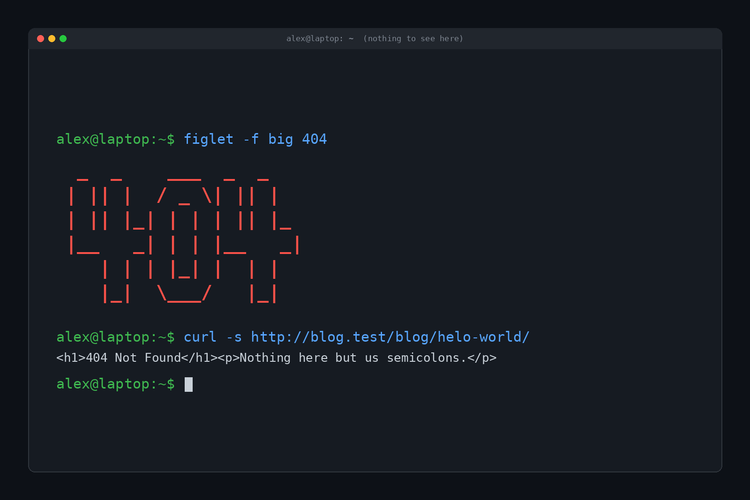
| 404 Not Found | There's nothing at that address. |
| 418 I'm a teapot | A real code that started as a joke. (Yes, really.) |
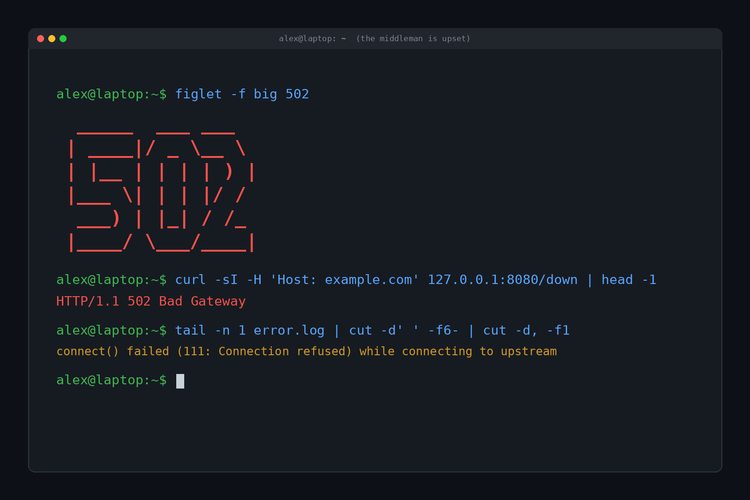
| 500 Internal Server Error | Something broke on the server's side. |
| 503 Service Unavailable | The server is overloaded or down for maintenance. |
For a normal page, the first thing in the response is HTML, the structure and text of the page. But HTML is only the skeleton. It points to dozens of other files the browser still needs: stylesheets, JavaScript, images and fonts.
Step 7: Building the Page
Your browser doesn't wait for the whole HTML file to arrive. It starts reading as soon as the first bytes show up, and every time it finds a reference to another file, it fires off another request. Files it already has saved get loaded from its cache instead, which is why a site's second page usually loads faster than the first.
From the HTML it builds the DOM (Document Object Model), a tree of every heading, paragraph, image and link on the page. From the CSS it builds the CSSOM, the rules for how each of those should look. It combines the two, works out exactly where everything goes on screen (the layout step), and then paints the pixels. JavaScript runs alongside all of this and can change the page as it goes, which is how pages load more content as you scroll.
What Slows Each Step Down
- DNS: a slow or overloaded resolver. Switching to a fast public resolver can help.
- Connecting: physical distance and a weak connection. Every round trip to a server across the world takes longer, which is the problem CDNs solve.
- Encryption: older TLS versions needed more round trips. TLS 1.3 and HTTP/3 shaved that down.
- The server: slow databases, busy servers or heavy code. This shows up as a long wait before anything appears.
- Rendering: huge images, lots of JavaScript and dozens of trackers. This is why a page can show text quickly and then stutter while everything else loads.
 Server403

See It for Yourself
You don't have to take any of this on faith:
- Watch every request: press F12 (or Cmd+Option+I on a Mac) to open developer tools, click the Network tab and reload any page. You'll see every file the page loads, its status code, and a timing breakdown for DNS, connecting, TLS and waiting on the server.
- Do a DNS lookup by hand: open Command Prompt, PowerShell or Terminal and type
nslookup server403.com. That's Step 2, done manually. - Trace the route: run
tracert server403.comon Windows ortraceroute server403.comon Mac or Linux to see every network hop between you and the server. - Check the status code: run
curl -I https://server403.comto see the response headers without the page itself.
Why This Is Worth Knowing
Once you know the steps, a lot of everyday internet weirdness starts making sense:
- A site that's "down for you but not for anyone else" is often a DNS problem. Your computer or resolver may be holding onto a bad or outdated address.
- Certificate warnings come from Step 4, when the browser can't verify the site is who it claims to be.
- A long blank wait before anything appears usually means a slow server in Step 6.
- An error page with a number on it is just Step 6 telling you exactly what went wrong.
Frequently Asked Questions
How long does all of this take?
On a fast connection with a nearby server, the network steps usually take somewhere between a few dozen and a few hundred milliseconds. A full page with images and scripts can take longer, but the first content often appears in well under a second.
How do I clear my DNS cache?
If a site isn't loading for you but works for others, clearing your computer's saved DNS answers can help. On Windows, open Command Prompt and run ipconfig /flushdns. On a Mac, open Terminal and run sudo dscacheutil -flushcache; sudo killall -HUP mDNSResponder. Restarting your router clears its cache too.
Can my internet provider see the sites I visit?
Traditionally, yes, because DNS lookups were sent unencrypted. Many browsers now support encrypted DNS (called DNS over HTTPS), which hides the lookups from your network. Your provider can still see which servers you connect to, though. A VPN hides that too.
What's the difference between HTTP and HTTPS?
HTTPS is HTTP with TLS encryption added (Step 4). It keeps anyone on your network from reading or tampering with what you send and receive. Plain HTTP is now rare, and browsers warn you when a site uses it.
TL;DR
When you type a URL, your browser finds the server's IP address through DNS, opens a connection with a TCP handshake (or QUIC on newer sites), sets up encryption with a TLS handshake, sends an HTTP request, gets back a response with a status code and HTML, and then fetches everything else the page needs and draws it on screen. All of that usually happens in well under a second, and your browser's developer tools will show you every step.